EditInPlace |
|
Click Here to view a quick YouTube video of EditInPlace. EditInPlace is a SketchUp plugin that lets you edit (modify) components and groups in a separate SketchUp instance. EditInPlace overcomes one of SketchUp's biggest limitations - the clipping plane which prevents you from effectively editing small components in large models. It is a time saver for SU Podium users who need to add properties to materials that are hard to find in large models. EditInPlace is free. Please download from here. EditInPlace is also included in SU Animate V4. How to use EditInPlace
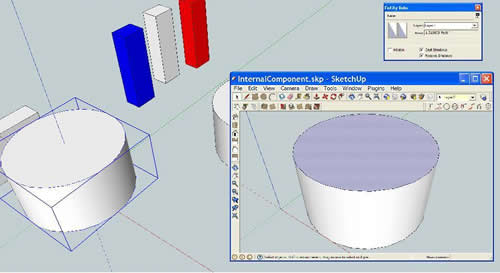
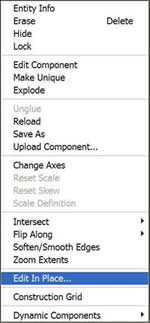
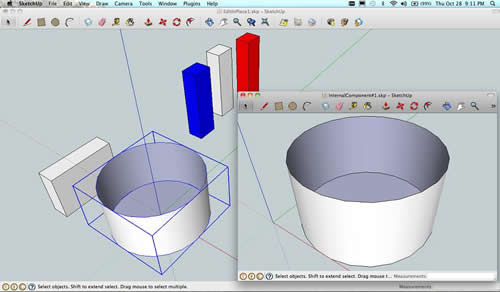
EditInPlace lets you modify a component or group definition in a separate SketchUp window. After making your modifications to the component/group definition, EditInPlace lets you update instances of the selected definition in the original model. The interface is somewhat different on Windows vs. Mac. EditInPlace on WindowsEditInPlace adds an item labeled "Edit In Place..." in the context menu when a single component or group is selected.
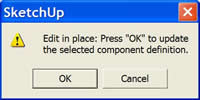
Clicking "Edit In Place..." causes the plugin to write the component/group definition to a temporary file (if the component definition file does not exist) and then opens that file in a new instance of SketchUp. The new instance of SketchUp has all the same settings and plugins as the original; but the only item in the new SketchUp window is the component you selected. (If you originally selected a group, it is converted into a component). In the new instance of SketchUp, you can make whatever changes you like, and then close the application, either saving or discarding your changes. Note that while the new instance of SketchUp is open, the original SketchUp window cannot be accessed. Once you dismiss the new instance of SketchUp opened by EditInPlace, a dialog offers the option to update the component in the original model:
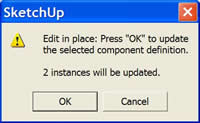
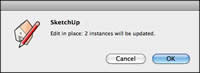
If you are changing a component that has multiple instances in the original model, then the dialog will include that information:
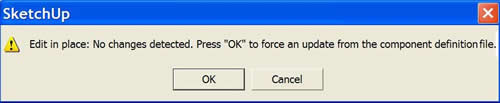
If you have not made any changes to the component/group definition, then another dialog offers the option of forcing an update from the definition file:
The "force" option reloads the component definition from the file on disk.
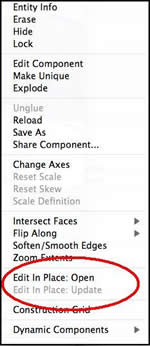
EditInPlace on the MacOn the Mac, EditInPlace adds two items to the context menu when a single component or group is selected: "Edit In Place: Open" and "Edit In Place: Update". The "Update" option is grayed out until the component has been selected using the "Open" option.
Clicking the "Edit In Place: Open" item causes the plugin to write the component/group definition to a temporary file (if the component definition file does not exist) and then opens that file in a new SketchUp window. The only item in the new SketchUp window is the component you selected. If you originally selected a group, it is converted into a component. In the new SketchUp window, you can make whatever changes you like, and then save or discard your changes. At any time you can return to the original SketchUp window and select the original component; in the context menu, the "Edit In Place: Update" item is now available. Choosing that option will update the component. If you are changing a component that has multiple instances in the original model, then a dialog will warn you of that:
If you have not yet saved your changes to the component/group definition, then no changes are detected: another dialog offers the option of forcing an update from the definition file:
The "force" option reloads the component definition from the file on disk. |